

01
Start with placement
Pick the body area before the style. A forearm piece, shoulder cap, rib design, and ankle tattoo all need different proportions, line weight, and negative space.
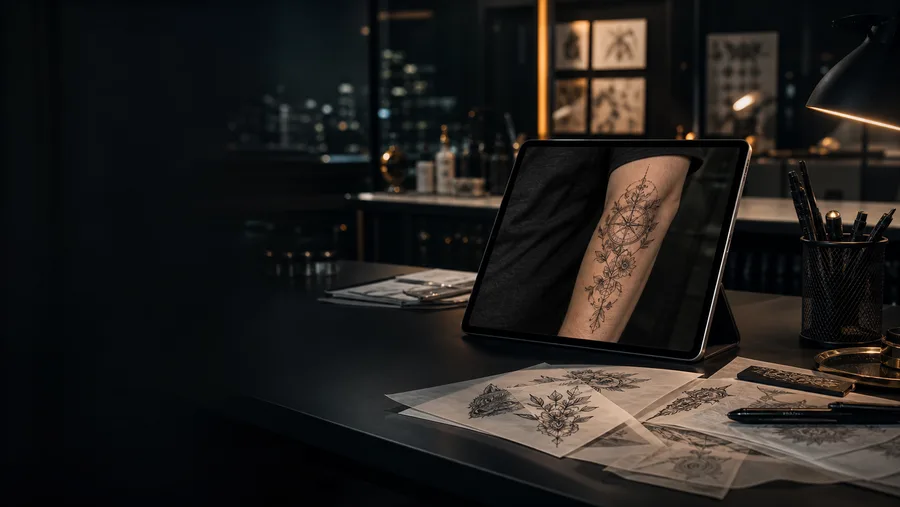
Use our AI tattoo generator to turn a rough idea into a visual reference, preview it on your own photo, and walk into the studio with scale, style, and questions clarified.
Describe the subject, placement, detail level, and mood. Generate references that are easier to compare and easier for an artist to redraw for real skin.
"A majestic Japanese dragon coiling around a cherry blossom tree, Irezumi style, high contrast blackwork."

A good tattoo starts before the appointment. Use virtual tattoo try-on to compare placement, style, scale, and skin contrast, then bring a cleaner reference to your artist instead of a folder of disconnected screenshots.
Pick the body area before the style. A forearm piece, shoulder cap, rib design, and ankle tattoo all need different proportions, line weight, and negative space.
Use the AI tattoo generator to compare the same subject as blackwork, realism, Japanese, minimalist, and traditional before settling on one visual language.

Shrink and enlarge the preview. If the design disappears from a few feet away, it probably needs more size, stronger outlines, or simpler detail.

Save the strongest preview, your preferred style, and placement notes. A tattoo artist can turn that clearer brief into artwork made for real skin.
The same prompt can feel completely different depending on style. Use the AI tattoo generator to compare readability, mood, and aging risk before asking for a final drawing.

Bold symbols, smaller pieces, long-term readability
Traditional tattoo designs use strong outlines and compact shapes, making them a safer starting point for first tattoos and high-contrast previews.

Cover-ups, ornamental pieces, graphic contrast
Blackwork holds visual weight on most skin tones and is useful when you need a design that reads clearly in a tattoo placement preview.

Portraits, animals, cinematic references
Realism can look powerful, but it needs enough size for detail. Test it larger than you expect before committing to a small placement.
Sleeves, back pieces, flowing body compositions
Japanese tattoo concepts are built around movement, background, and body flow, so virtual try-on is especially helpful for checking how the design wraps.

First tattoos, fine-line symbols, discreet placements
Minimalist tattoos work best when the idea is simple. Preview line thickness and spacing carefully so the design does not disappear on skin.
Expressive color, painterly concepts, large soft shapes
Watercolor tattoo ideas can be beautiful in a preview, but contrast matters. Test the design against your skin tone before choosing a palette.
These focused tattoo tools answer the searches people make before they book: lettering, name tattoos, Roman numeral dates, size in inches, price estimates, and turning a picture into a tattoo concept that an artist can adapt.
tattoo font generator
Preview script, cursive, gothic, serif, and minimalist lettering for names, quotes, dates, and initials.
name tattoo designs
Turn a name into readable script, initials, memorial lettering, or a symbol-led tattoo reference.
roman numeral tattoo
Convert meaningful dates into Roman numerals and compare separators, font style, and placement.
tattoo price calculator
Estimate tattoo cost by size, detail, color, placement, hourly rate, and likely session time.
tattoo size chart
Compare tattoo sizes in inches so your idea has enough room for detail and long-term readability.
turn picture into tattoo
Convert a pet photo, portrait, logo, or object into a cleaner tattoo reference for your artist.
Tattoo placement affects everything: size, detail, orientation, and how the piece looks when your body moves. Preview the same idea on more than one area before you decide where it belongs.
Great for readable designs, scripts, bands, and medium-detail artwork. Rotate the preview to check how the tattoo changes when your arm turns.
Best for circular, animal, floral, and ornamental ideas. Use angled photos so the AI can show how the design sits over the shoulder curve.
Strong for large symmetrical pieces, wings, dragons, mandalas, and full compositions. Preview both small and oversized versions before deciding.
Works for vertical designs, script, botanicals, and flowing shapes. Check readability because rib tattoos curve and stretch with posture.
Input your tattoo concept, placement, and preferred style.
Watch as our advanced AI crafts a unique tattoo design in seconds.
Visualize the ink on your own body and download the stencil.
You can create tattoo ideas from text prompts, compare styles, turn pictures into tattoo references, and prepare a visual brief for your artist. Use it to explore direction before you book a real tattoo appointment.
A tattoo is a lifelong commitment. Virtual try-on removes the guesswork by letting you visualize how a design flows with your body's natural curves, skin tone, and muscle structure before the needle touches your skin.
TryOn.ink uses advanced generative AI. Simply describe your idea (e.g., 'a geometric wolf in blackwork style'), and our engine creates a unique, high-definition design.
Absolutely. We encourage it! Once you generate a design you love, download the high-resolution image to show your artist.
Yes. Our AI is trained to recognize skin and body geometry. Whether it's an arm sleeve, a back piece, or a small ankle tattoo, the system adjusts the design naturally.
Use a clear, well-lit photo where the skin area is visible and not covered by sleeves, jewelry, or heavy shadows. A straight-on image works for simple placements, while angled photos are better for shoulders, forearms, ribs, and calves where the tattoo needs to wrap with the body.
Yes. Generate the same idea in several tattoo styles, then compare readability, detail, and contrast. Traditional and blackwork usually stay readable at smaller sizes, while realism, watercolor, and Japanese compositions often need more skin area to look balanced.
Virtual try-on is best used as a planning reference, not as a final stencil. It helps you test scale, placement, flow, and contrast before talking with a tattoo artist, who can adapt the design for skin texture, aging, and needle technique.
Yes. Upload a photo of the existing tattoo and describe the new direction. Darker styles such as blackwork, neo-traditional, Japanese, and heavy ornamental designs usually give cover-up concepts more room to hide old lines.